How to add captions to a Telegram circle video
Updated July 30, 2026
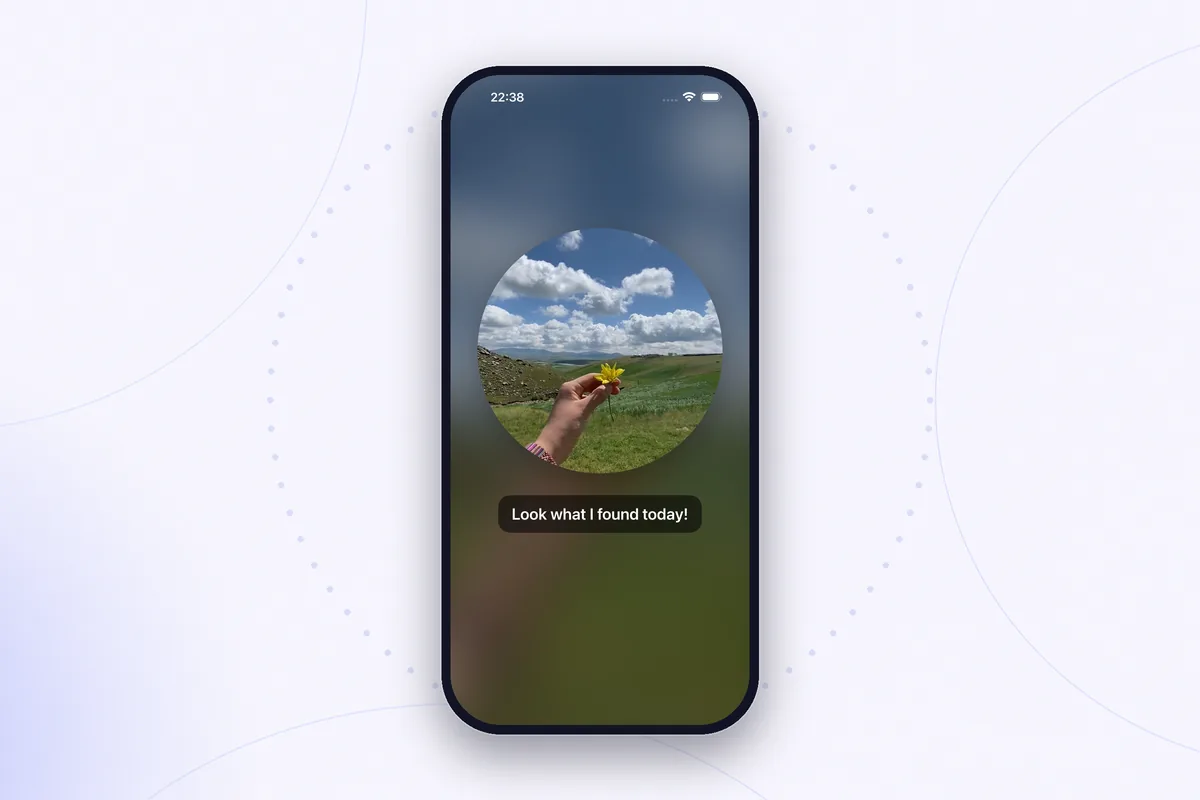
A circle video is almost always someone talking. That is the whole point of the format — it is a spoken message with a face attached. Which makes it the worst possible thing to post somewhere people scroll with their phones on silent.
Captions fix that. This guide covers what has to happen technically, how to caption a circle by hand if you want full control, and how to let speech recognition do the tedious part first. If the clip is still sitting in a chat, start with saving a Telegram circle video on iPhone and come back here.
Why circles need captions more than ordinary video
Two things stack up against a round message once it leaves Telegram.
The first is sound-off viewing. Stories, Reels, and TikTok all autoplay muted by default, and a large share of viewers never tap to unmute. A talking-head clip with no captions is silent nonsense to them — they see a mouth moving, get nothing, and swipe on. The second is size. A circle occupies far less of the frame than a full-bleed video, so lip movement and expression carry less information than they would at full size. Whatever the person says has to survive in text or it does not survive at all.
There is a third, less obvious reason: circles are usually shot in one take, off the cuff. They are rarely scripted, rarely re-recorded, and often a little rambling. Captions impose a structure on them that the recording itself never had.
Captions have to be burned in
This trips people up, so it is worth being precise. There are two kinds of subtitles:
- Sidecar subtitle tracks — an SRT or VTT file next to the video, or a subtitle track inside the container. Video players and YouTube read these. You can toggle them on and off.
- Burned-in captions — the text is drawn into the pixels of every frame. Nothing can turn them off, because there is nothing to turn off.
Instagram Stories, Reels, TikTok, and WhatsApp do not accept a subtitle track when you upload a video from your camera roll. Some of them offer their own auto-caption sticker, applied inside their app to videos you post there, but that does nothing for the file itself — send the same clip to a friend and the captions are gone. If you want text that travels with the video everywhere, it has to be burned in before you export.
Option 1: caption it by hand
Any video editor with a text tool can do this. The workflow is the same everywhere:
- Play the clip and write down what is said, in short chunks — roughly one breath or one clause per chunk.
- Add a text layer for the first chunk and set its start and end time to match the speech.
- Position it so it does not cover the circle, and style it for legibility: solid or semi-opaque background behind the text, generous size.
- Duplicate the layer for every remaining chunk, editing the text and re-timing each one.
- Export. The text is now part of the video.
This gives you complete control and costs nothing but time. The timing is the painful part — a thirty-second circle can easily be fifteen separate text layers, each needing its in and out points nudged until it lands with the speech. Doing that once is fine. Doing it for every circle you want to share is why most people give up and post the clip uncaptioned.
Option 2: transcribe first, then fix
The faster route is to let speech recognition produce a first draft with the timings already attached, then correct it. Recognition is good but not perfect: it handles ordinary conversational speech well and reliably mangles names, slang, and anything said over background noise. Treating its output as a draft rather than a result is the right mental model.
Rondo does this inside the editor. The flow is short:
- Open the circle in the app — import a saved one, or record a new one directly.
- Tap the CC button in the editor.
- Pick the language actually being spoken. English, Russian, Ukrainian, and Polish are supported, and it defaults to your device language.
- The first time you use it, a notice explains that the clip's audio is sent to Apple's speech recognition service to be transcribed, with a link to the privacy policy. Nothing is sent until you accept it.
- Wait for the transcript. Lines come back already split into short, word-timed chunks.
- Fix what it got wrong. Tap a line's timecode to jump the preview there, edit the text inline, swipe to delete a line that is noise rather than speech.
- Pick a style — Bubble, Bold, or Clean — and check the preview.
- Export. What you saw in the preview is what gets written to the file.
Two honest caveats. Captions are a Pro feature, so the CC button shows a lock badge until you buy the one-time upgrade. And the transcription step is the one part of the app that uses the network: the video itself never leaves your phone, but the audio extracted from it goes to Apple to be turned into text. Everything else — the background, the masking, the export — happens on the device.
Making captions readable on a circle
A round video creates a layout problem that rectangular video does not: the interesting part is a circle in the middle, and text laid over it covers a face. A few things help.
Put the text below the circle, not on it. In a 9:16 frame there is a natural band of background beneath the circle that is doing nothing. That is where captions belong. If you are exporting square, leave a little breathing room at the bottom of the composition for the same reason.
Keep lines short. Two lines of a few words each, replaced often, beat one long line that sits there for eight seconds. Short lines are also more forgiving of a bad guess by the recognizer — a wrong word in a three-word line is obvious and quick to fix.
Give the text its own background. A blurred video background shifts constantly in brightness, and white text will vanish over any pale frame. A filled bubble behind the words keeps them legible no matter what the video does underneath.
Mind the platform's own furniture. Instagram puts the profile row at the top of a Story and the reply box at the bottom, and both eat into the frame. Keep captions comfortably inside the middle of the vertical frame — the full framing rules are in the guide on posting a circle video to an Instagram Story.
One last thing worth checking before you export: if you saved the clip straight out of Telegram, it still has the white corners baked into every frame. Captions on top of that still look like a screenshot of a chat. Replace the background first, then caption it.
Rondo transcribes the speech in a circle video, lets you fix the lines, and burns them in on export — on the same screen where you set the background and choose square or 9:16.
Get Rondo for iPhoneFAQ
Can I add captions to a circle video inside Telegram?
No. Telegram has no caption tool for video messages, and no way to attach a subtitle track to one. Captions have to be added outside the app, to a saved copy of the clip, before you share it anywhere else.
Will the captions show up if I send the video to someone?
Yes, as long as they are burned in. Because the text is part of the picture, it survives being sent through any messenger, uploaded to any platform, and re-encoded along the way. That is the advantage of burned-in captions over a subtitle file, which most apps simply ignore.
How accurate is automatic transcription?
Good for clear, ordinary speech and unreliable for names, slang, and anything competing with background noise. Expect to correct a few words on most clips. Recording somewhere quiet and speaking at a normal pace helps more than anything you can do afterwards.
Does adding captions send my video somewhere?
The video does not leave your phone. To produce the transcript, the audio extracted from it is sent to Apple's speech recognition service, and the app asks for your agreement before that happens the first time. If you skip captions, the app makes no network requests at all.