How to save a Telegram circle video on iPhone
Updated July 24, 2026
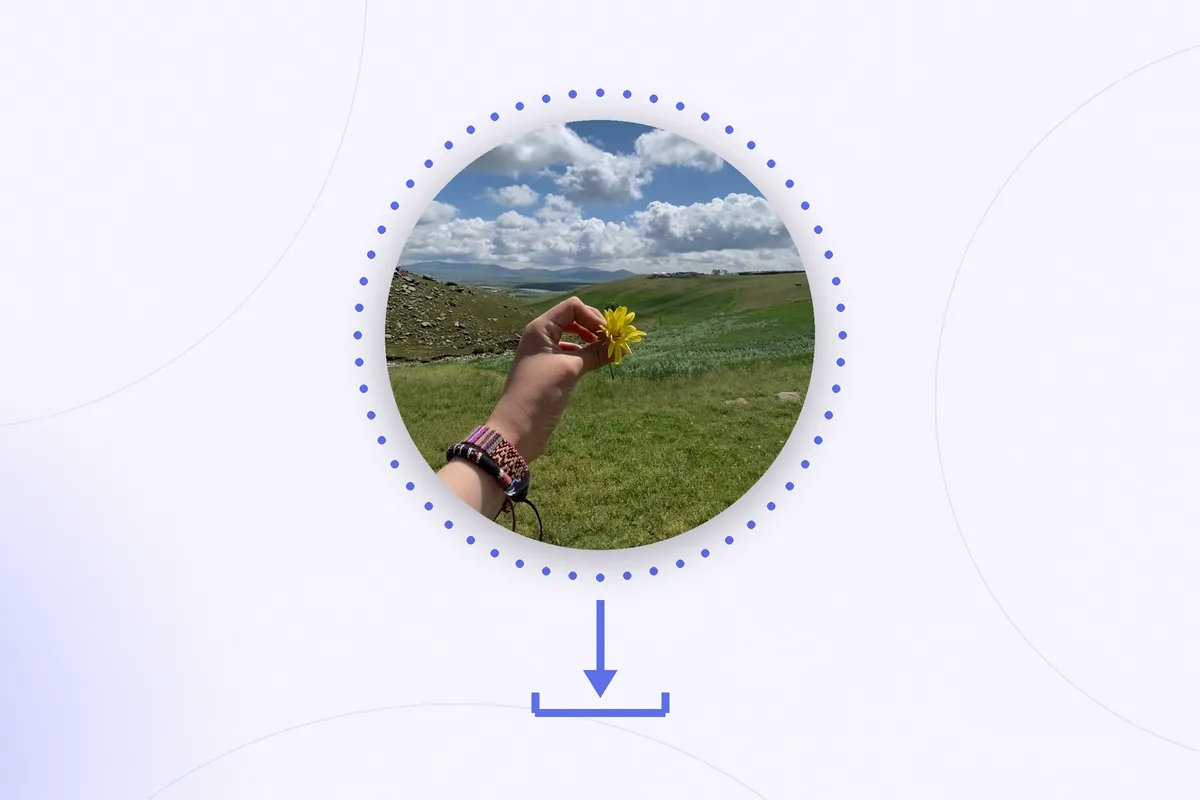
Circle videos — Telegram calls them video messages, and everyone else calls them circles, rounds, or video notes — are recorded and played entirely inside the chat. There is no obvious Download button next to them, so the moment someone sends you a circle you want to keep, the app suddenly feels less friendly than usual.
The good news: saving a circle to your iPhone is entirely possible, and you have three ways to do it. This guide walks through each one, from the fastest to the most reliable, and then covers the one unpleasant surprise waiting at the end — the white corners baked into the saved file.
What you actually get when you save a circle
Inside a chat, a circle is displayed through a round mask. The file behind it, however, is an ordinary square MP4 video. When Telegram exports that file to your camera roll, the area outside the circle is filled in — which is why saved circles typically arrive as square videos with solid white corners. The corners are real pixels in the video, not a transparent overlay, so no player or app will hide them on its own. Keep this in mind; we will deal with it in the last section.
Method 1: Save to Gallery from the chat
The most direct route, available right in the conversation:
- Open the chat and find the circle you want to keep.
- Touch and hold the circle until the context menu appears.
- Tap Save to Gallery.
- If Telegram asks for permission to access your photos, allow it — the video lands in your Photos app like any other clip.
Telegram's menus change between versions, and in some releases this option is missing for video messages. If you do not see it, nothing is wrong with your phone — just use the next method.
Method 2: Go through Saved Messages
Saved Messages is your personal cloud chat, and it doubles as a convenient transfer point:
- Touch and hold the circle, then tap Forward.
- Choose Saved Messages as the destination.
- Open Saved Messages, touch and hold the forwarded circle, and look for Save to Gallery — or tap the share icon and choose Save Video from the iOS share sheet.
This route works even when the original chat is busy or the message is about to disappear from view, and it keeps a copy in your own space in the meantime.
Method 3: Use Telegram Desktop
When the iPhone app refuses to cooperate, the desktop app almost never does:
- Open the same chat in Telegram Desktop on a Mac or PC.
- Right-click the circle and choose Save Video As…
- Send the file back to your iPhone — AirDrop is the quickest way on a Mac; iCloud Drive or any file-sharing service works from Windows.
You end up with the same square MP4, just fetched with fewer taps and no menu roulette.
When saving is blocked
Some groups and channels enable Telegram's protected-content setting, which disables forwarding, saving, and screenshots for everything posted there. If the options above are missing in such a chat, that is the sender's or admin's deliberate choice. The fair move is simply to ask the person to send you the original video as a file — most people are happy to when the circle was meant for you.
Fixing the white corners
So the circle is in your camera roll — as a square video with four white corners. Posting it to a Story or forwarding it outside Telegram like this looks unmistakably like a screenshot of someone's chat.
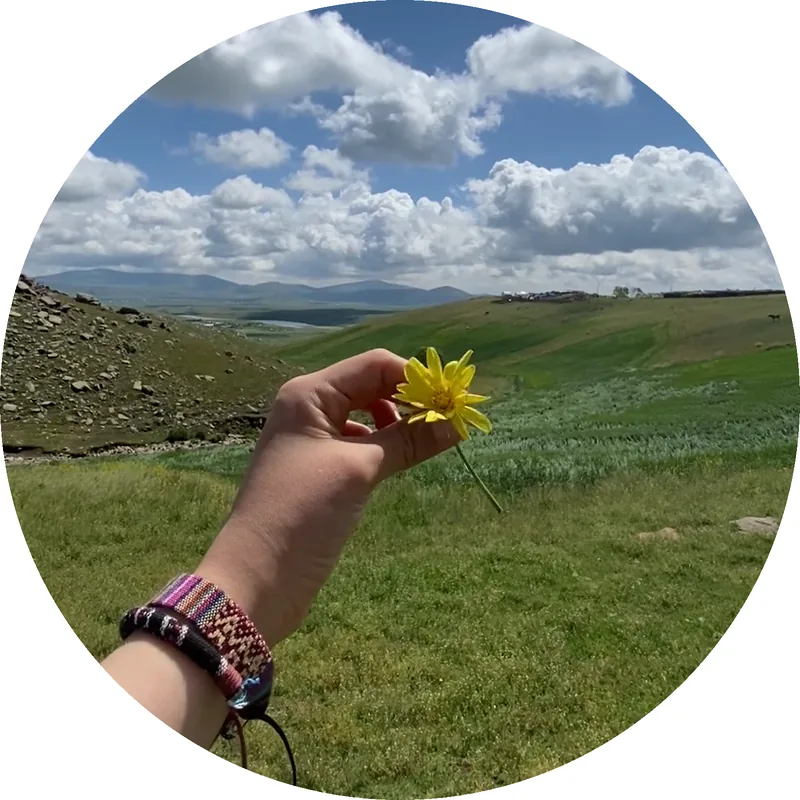
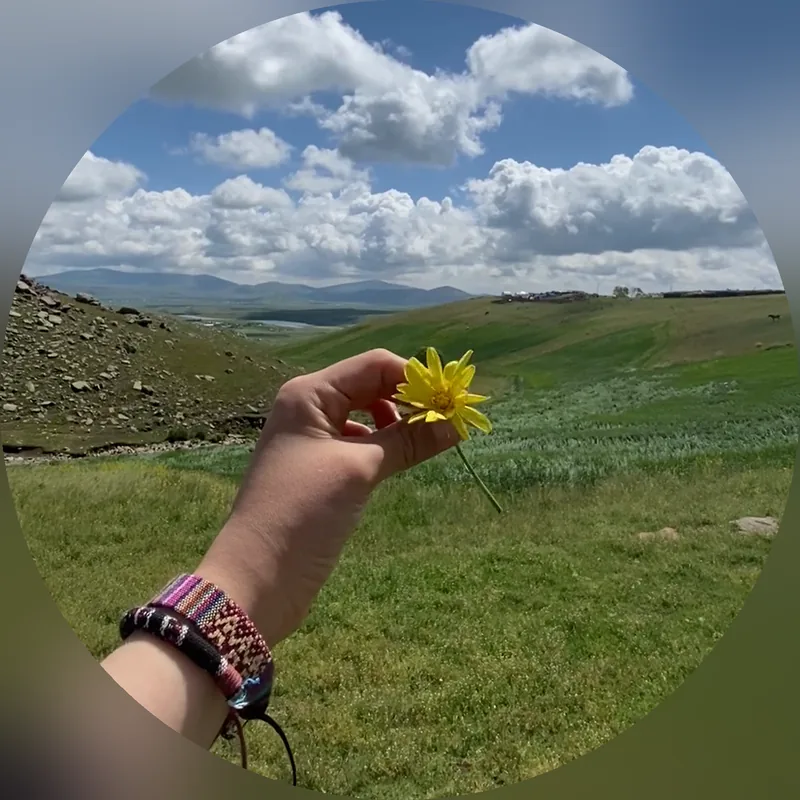
Rondo fixes this in one step: it detects the circle in a saved video automatically and replaces the white corners with a blurred or colored background, ready to share as a square or in 9:16. Recording new circles works too.
Get Rondo for iPhoneFAQ
Why does the saved circle have white corners?
Chat apps show round messages by masking a square video behind a circle. When the file is exported, the mask has to become part of the picture, so everything outside the circle is filled with white. Those corners are ordinary video pixels — only an editor that rebuilds the background can remove them.
Does the saved file keep its sound?
Yes. Saving a circle to your gallery keeps the original audio track — nothing is muted or re-recorded along the way.
Can I post a saved circle to an Instagram Story?
You can, but a square video with white corners will be letterboxed and look like a screen grab. It reads much better if you first put the circle on a clean background and export it in 9:16, which is exactly what a circle-video editor is for.