How to post a Telegram circle video to an Instagram Story
Updated July 28, 2026
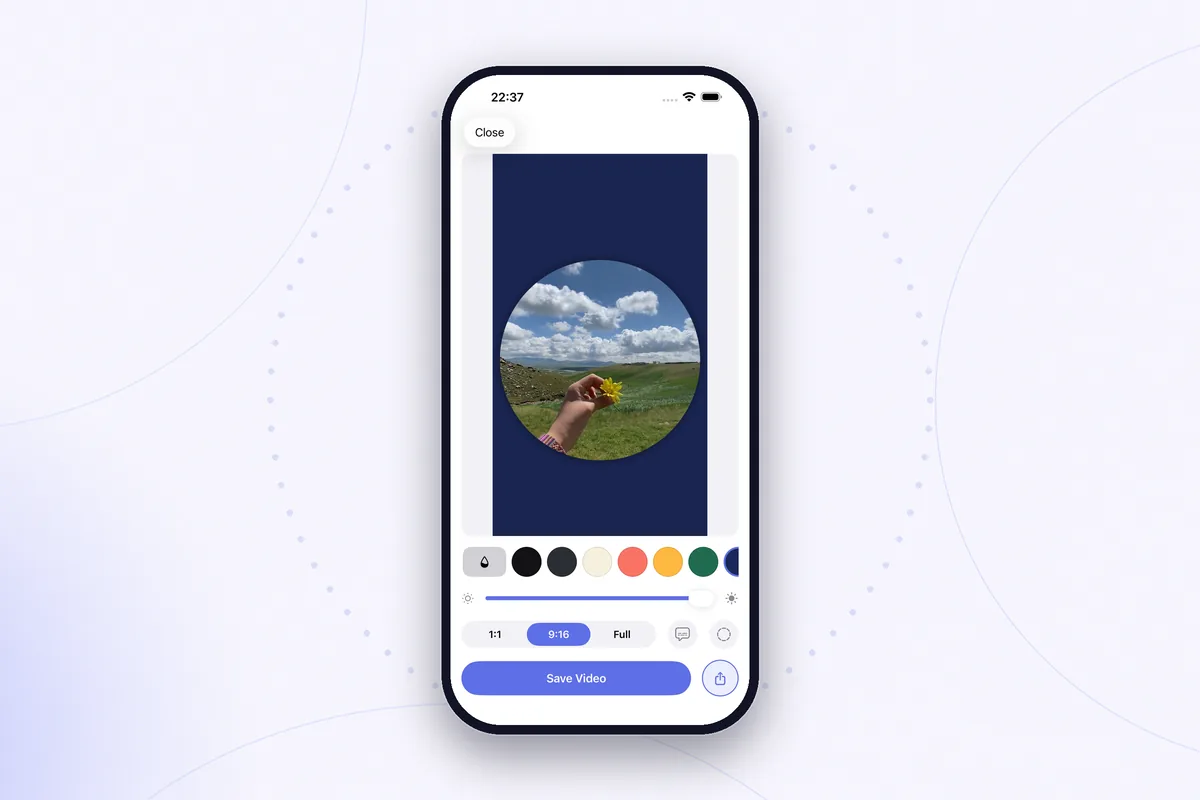
Someone sent you a circle video worth showing off — or you recorded one yourself — and now you want it in your Instagram Story. Telegram has no share button that leads to Stories, and simply saving the circle and uploading it as-is produces something you will not want to post: a small round picture lost in the middle of the screen, framed by four white corners.
The good news: the path from a chat to a decent-looking Story is short, and it is the same every time. This guide walks the whole route — save the circle, fix the corners, rebuild the clip as a vertical 9:16 video, and post it so it looks made for Stories rather than lifted from a chat.
Why a straight repost looks wrong
A circle is only round inside Telegram. Technically it is an ordinary square video — Telegram calls the format video messages — displayed through a round mask that exists only in the app. Export the file and the mask is gone: what lands in your camera roll is a square clip with the area around the circle filled in with solid white.
Instagram Stories, meanwhile, are built around vertical 9:16 video. Hand the Story camera a square clip and it letterboxes it: your circle floats in the middle with empty space above and below, white corners intact. The result reads as a screen grab of somebody's chat, not as a post. To look native, the clip needs two repairs before Instagram ever sees it — a new background instead of the corners, and a frame that fills the vertical screen.
Step 1: get the circle into your camera roll
In the chat, touch and hold the circle and choose Save to Gallery. If that option is missing in your version of Telegram, forward the circle to Saved Messages and save it from there, or grab the file with Telegram Desktop and send it over to your iPhone. All three routes — including what to do when saving is blocked entirely — are covered in our guide on how to save a Telegram circle video on iPhone.
Whichever route you take, the result is the same: a square video in Photos with the circle in the middle and white in the corners.
Step 2: replace the white corners
The corners cannot be cropped away — they sit exactly in the corners of the tightest square around the circle — and transparency does not survive an upload to Stories. The only real fix is to rebuild the background: keep the round part and put something new behind it, most commonly a heavily blurred copy of the video itself or a flat color that matches your Story. Why the shortcuts fail, and how to do the rebuild by hand in a layer-based editor, is the subject of our guide on removing the white corners from a circle video.
Step 3: build the 9:16 frame
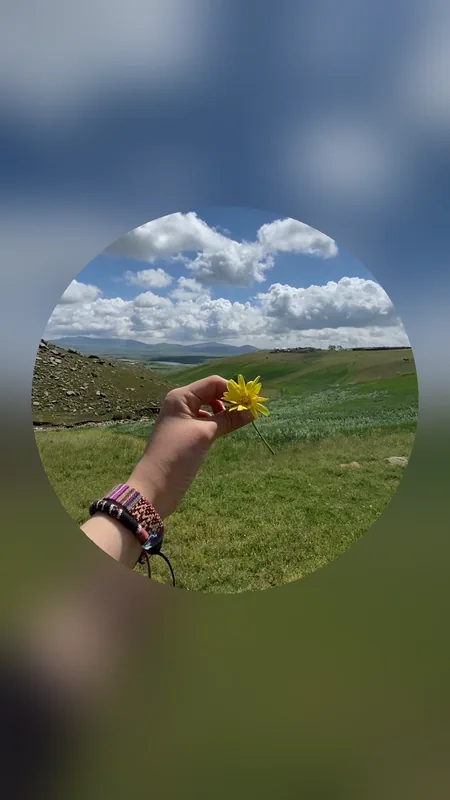
Since the clip is headed for a Story, do not stop at a square — build the vertical frame yourself instead of letting Instagram letterbox you:
- Set the canvas to 9:16, the shape of the Story screen.
- Let the background fill the entire canvas. The blurred variant works best here, because it turns the whole Story into one continuous picture.
- Center the circle horizontally and place it slightly above the middle of the frame.
- Leave the very top and bottom of the frame empty. Instagram draws its own interface there — your username at the top, the reply box at the bottom — and anything important placed in those zones gets covered.
- Export the result as a regular vertical video.
Step 4: post it
Open Instagram, swipe into the Story camera, and pick the exported clip from your gallery — it fills the screen edge to edge, exactly like a Story shot in the app. From here everything Stories offer works as usual: stickers, text, mentions, music.
Two quick checks before you share. First, sound: circles are usually all about the voice, and plenty of people watch Stories muted — a text sticker or captions summarizing what is said will not hurt. Second, if the clip deserves a longer life than a disappearing Story, the same 9:16 file posts as a Reel with no changes at all.
Rondo collapses steps 2 and 3 into one: it finds the circle in a saved video automatically, replaces the white corners with a blurred or colored background, and exports a ready-to-post 9:16 clip for Stories and Reels.
Get Rondo for iPhoneFAQ
Can I share a circle from Telegram straight to Instagram?
No. Telegram treats video messages as an in-chat format, so there is no direct share path to Stories. The clip has to travel through your camera roll — and along the way it needs the corner and format fixes described above, or it will not look like a Story.
Should I just post the circle as a square?
A square works in the feed, but in Stories a square gets letterboxed with empty space above and below. A 9:16 rebuild with a full-frame background uses the whole screen and looks deliberate — the difference between posting a video and posting a screenshot of one.
Why does the circle look soft in the Story?
Circle videos are recorded at a small size, a Story stretches them across a much larger screen, and Instagram compresses the upload once more. Keep the circle at a sensible size in the frame instead of blowing it up to full width, and start from the saved original rather than a copy that has been forwarded many times.